

A Guide to Pay Using Transferwise
It's really easy to pay with Transferwise, just follow these simple steps!
If you don't have an account, register for one here: TransferWise.
With this link, you should get your first transaction fee waived.

After you have logged on to your Transferwise account, choose the
'Send Money' option in your dashboard.
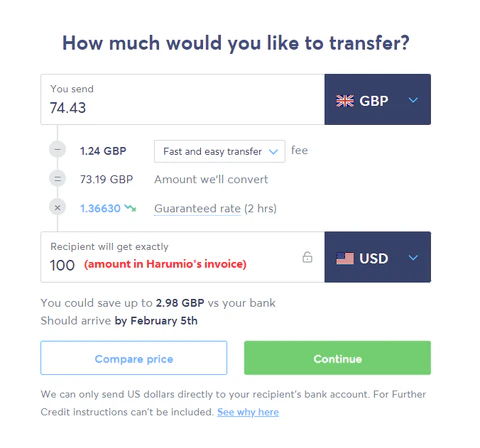
- Choose your currency (usually it's the same as the country where you're from).
- Then, choose USD for the receipient currency and enter the amount as stated in your invoice.
- For customers in the US, if you can't select USD to USD local transfer, please contact Wise support to enable it.
- The form will automatically calculate the amount that you need to pay in the 'You send' field.
- You can also change the fee settings if you do not want the default one.
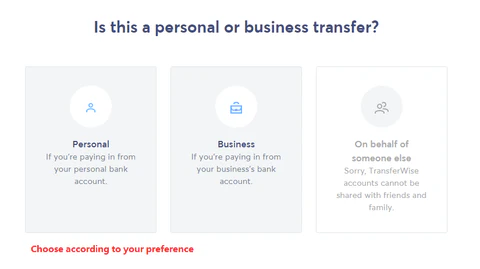
Choose whether you are transferring from your personal back account or your
business bank account.
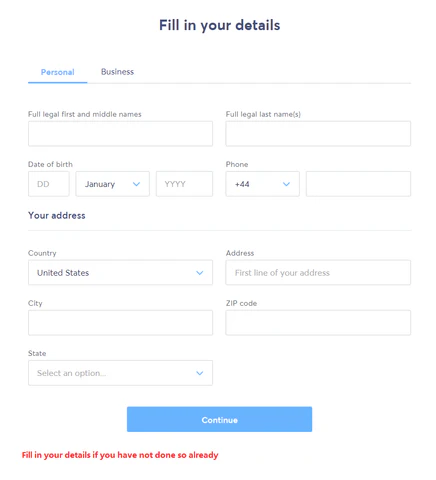
Enter your personal details, if you have not already done so.
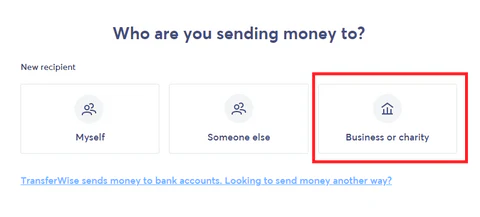
Choose the type of transfer.
To transfer to Harumio, please make sure you choose Business.
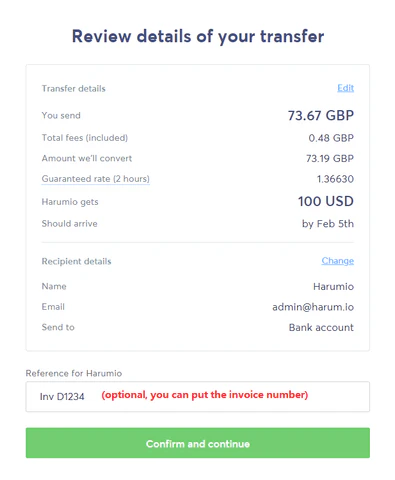
Put in the account details for Harumio.
Review your payment details.
Optionally, you can write your invoice number as in the reference box.
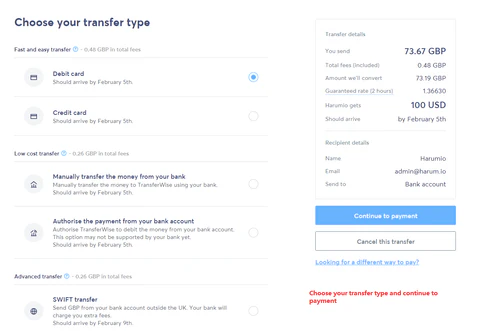
Then, choose how you'd like your transfer type, whether you'd like to pay via
credit card, debit card, or transfer from your bank. This is up to your preference.
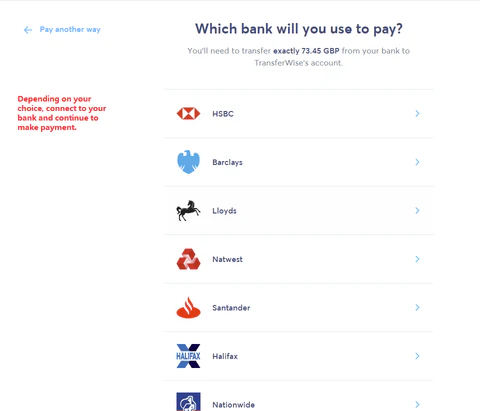
Depending on your choice, connect to your bank and continue with the payment.
After you have made the payment, just wait for the message for a successful transaction.
Don't forget to get a screenshot of the transaction and email it to us.
You can reply to our last email correspondence, or email us at support@harum.io!
